Beyond native read receipts
Outlook’s read receipts depend on your recipient. They have to agree to send one, and many email apps never show them the request.
Mailbutler works differently. It records open events in the background and shows you the result on your sent email.
- No receipt requests or pop-ups for recipients
- Works whether or not your recipient uses Outlook
- Works in new Outlook and Outlook on the web, plus classic Outlook on Windows and Mac
See email opens and link clicks
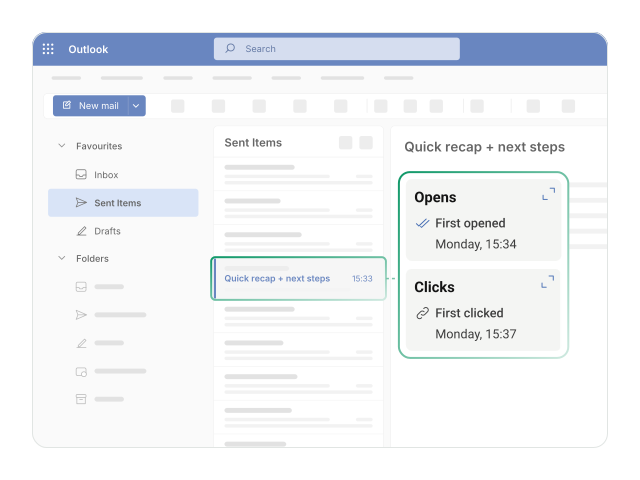
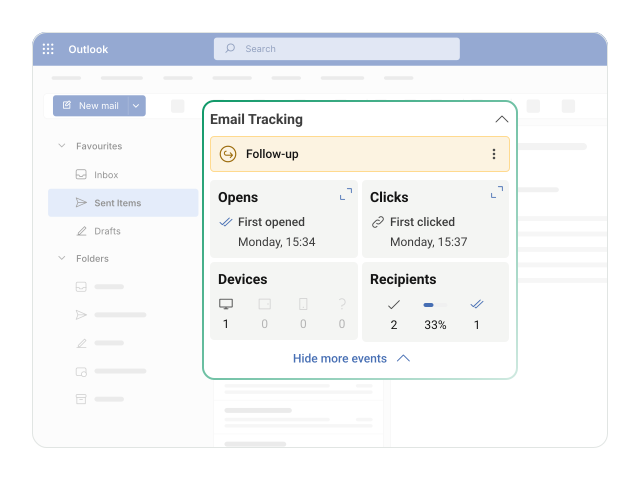
Every tracked email builds its own activity record. See the first and most recent open, how many times the email was opened, and which links were clicked.
- Open count with first and last open time
- Clicks on each tracked link
- The device type used to open the email
Get notified about opens and clicks in real time
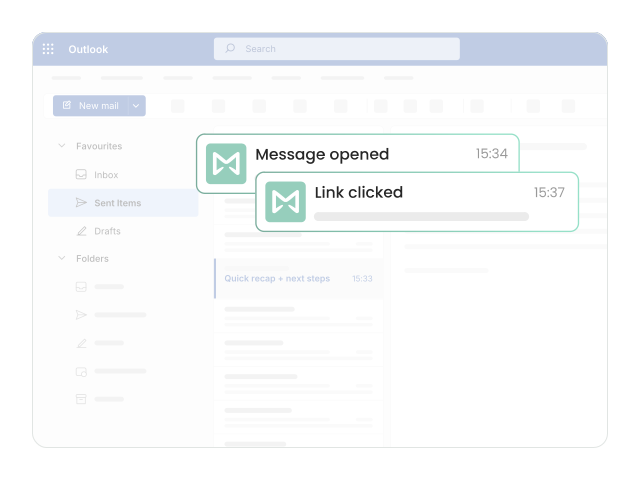
Mailbutler lets you know as soon as an email is opened or a link is clicked. Keep working on other things, and act when your recipient is engaging with your message.
- Real-time alerts for detected opens and clicks
- No need to keep checking your sent folder
- Reach out while the conversation is still fresh
Turn on alerts in Outlook on the web or the Mailbutler mobile app.
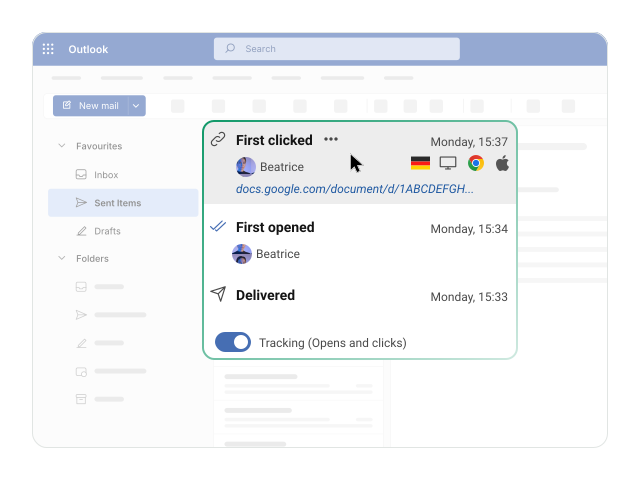
Review sent email activity inside Outlook
Open the Mailbutler sidebar on any sent email to see its full tracking history. Everything stays in your Outlook inbox, linked to the message it belongs to.
- Tracking details linked to the sent email
- Check activity before you reply or send a follow-up
- No separate dashboard to open
Identify the perfect moment to follow up
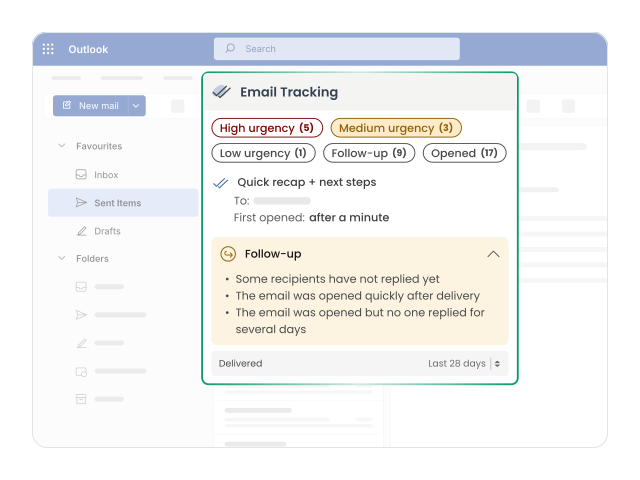
Real-time recipient activity shows you who’s interested and when. Mailbutler goes a step further and suggests which recipients to follow up with, so you can focus on the conversations most likely to move forward.
- Prioritize recipients who opened your email or clicked a link
- Spot emails that were opened but never answered
- Useful for sales, recruiting, and client work
Works with your Outlook setup
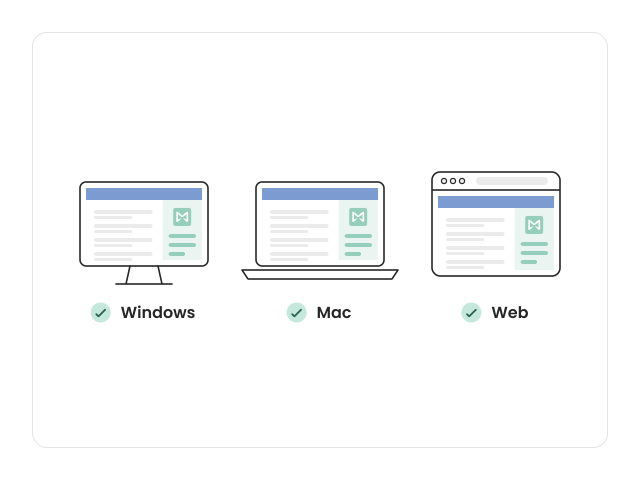
Mailbutler runs on Windows and macOS and in the browser, with Microsoft 365, Outlook.com, and Exchange accounts.
- New Outlook: Fully supported on Windows and Mac
- Outlook on the web: Works in Chrome, Edge, Firefox, and Safari
- Classic Outlook for Windows: Version 2403 or later
- Classic Outlook for Mac: Supported, with some limitations
- Accounts: Microsoft 365, Outlook.com, Exchange Online, and Exchange Server 2016 and 2019
Some features are limited for free Outlook.com accounts.
How to start tracking in Outlook
- Add Mailbutler to Outlook. Install the add-in and sign in with your email address.
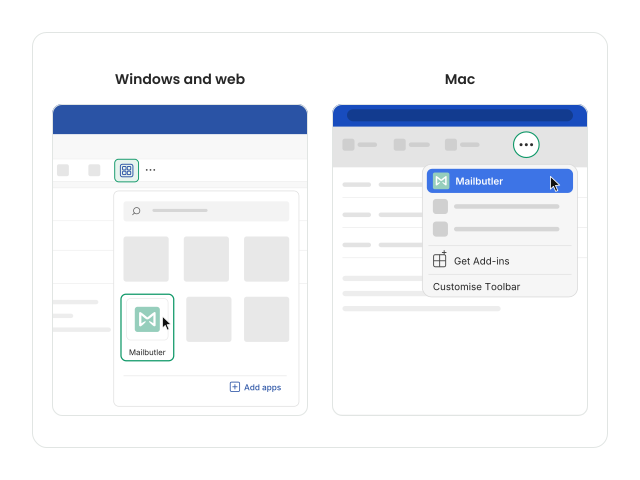
- Open Mailbutler when you write an email. Click the apps button, or “…” in Outlook for Mac, and choose Mailbutler. Tracking works while the sidebar is open, so pin it to keep it open for every new email.
- Send your first tracked email. Mailbutler tracks opens automatically. To track link clicks too, turn on link tracking in Account & Preferences.