Irena is an experienced Content and Email Marketer who loves animals, slow mornings, and all things Tolkien.
Topics
TL;DR:
You can recall an email in Microsoft Outlook only if both you and your recipient use Outlook with a Microsoft Exchange or Microsoft 365 account on the same organization’s server. Go to Sent Items → Open the email → File → Resend or Recall → Recall This Message.
Introduction
Accidentally emailed the wrong file, wrong person, or unfinished draft? Outlook’s “Recall This Message” feature may save you — but only under specific conditions.
This guide explains how Outlook message recall works, when it will and won’t succeed, and what alternatives you can use if recall isn’t available.
Fact nugget: Outlook’s recall function works only in tightly controlled Exchange environments.
What is Outlook’s “Recall This Message” feature?
Direct answer
It’s a built-in Outlook function that attempts to delete or replace an email you already sent — but only for recipients inside the same Exchange or Microsoft 365 organization.
How it works
Outlook sends a “recall request” to the recipient’s mailbox
If the email is unread, Outlook attempts to remove it
You can optionally replace the recalled message with a new version
Key limitations
It won’t work for Gmail, Yahoo, or external domains
It won’t work if the recipient has already opened the message
It may fail if the recipient uses Outlook mobile apps, which may not process recall requests
Fact nugget: Message recall is not a universal undo button — it’s an internal network feature.
Recall Outlook message - classic view
How to recall an email in Outlook?
Direct answer
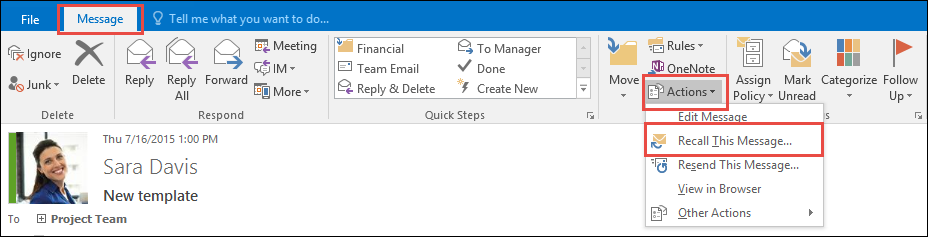
Open the email in Sent Items, go to File → Resend or Recall → Recall This Message, choose your options, and confirm.
Step-by-step guide (Windows desktop app)
Open Outlook
Go to Sent Items
Double-click the email you want to recall (it must open in a separate window)
Select File → Resend or Recall
Choose Recall This Message
Select either
Delete unread copies of this message, or
Delete unread copies and replace with a new message
Source: Microsoft
(Optional) Check Tell me if recall succeeds or fails
If a message was successfully recalled will recipients see that I tried to recall it? … In my limited experience, a recall usually works seamlessly for internal email recipients, and not at all for external ones.
Recalling an email in Outlook is a fairly simple process, but it only works under certain conditions (e.g., both you and the recipient must be using Outlook, and the email must not have been read yet).
Today I discovered that our Outlook has new recall feature. I tested it on email which I sent to people outside organization, it failed … then I tested it on email I sent to person inside the organization, it worked.
Key takeaways
Outlook recall works only inside Microsoft Exchange/Microsoft 365
The message must be unread for a successful recall attempt
Outlook desktop is required — web and mobile apps don’t support message recall
Use Undo Send, delays, and careful review to prevent errors
A fast follow-up correction email is often the most reliable fix
Learn the essential email etiquette rules for remote teams. This guide covers best practices for clarity, tone, time zones, subject lines, and async communication, plus how Mailbutler can support efficient email workflows.
Learn how to delegate tasks via email effectively, with clear examples and best practices for remote teams. This guide helps distributed teams and remote professionals improve async communication and streamline workflows.
Learn how to delete emails in Gmail, Apple Mail, and Outlook. Step-by-step guides for single and bulk deletion, plus tips to declutter your inbox faster.