TL;DR:
Gmail does not offer a true “email recall” option, but it does allow you to unsend an email for up to 30 seconds using the Undo Send feature. If the message has already left your outbox, you cannot technically recall it — however, tools like Mailbutler help reduce mistakes and improve message control.
Introduction
Ever hit Send and immediately regretted it?
Accidental emails are one of the most common workplace errors — and, according to a Verizon Data Breach Investigations Report, 82% of data breaches involve human error or misuse.
Fact nugget: Gmail’s Undo Send is not a recall. It’s a delay + cancel mechanism.
This guide explains how Gmail’s Undo Send feature really works, how to enable it, what its limitations are, and what to use when you need more control.
What does “recall an email” mean in Gmail?
Direct answer
Gmail does not support a real recall function. Instead, it lets you cancel an email for a short window after sending it.
Why Gmail can’t recall a sent message
Once an email leaves Gmail’s servers, it’s already delivered (usually within seconds).
Unlike Microsoft Outlook’s recall feature (which only works in very specific conditions), Gmail uses a sending delay.
Fact nugget: Gmail’s recall is actually a countdown timer.
How do you unsend an email in Gmail?
Direct answer
Click Undo within the allowed time window (5–30 seconds).
Step-by-step: Cancel a sent email
-
Send an email as normal
-
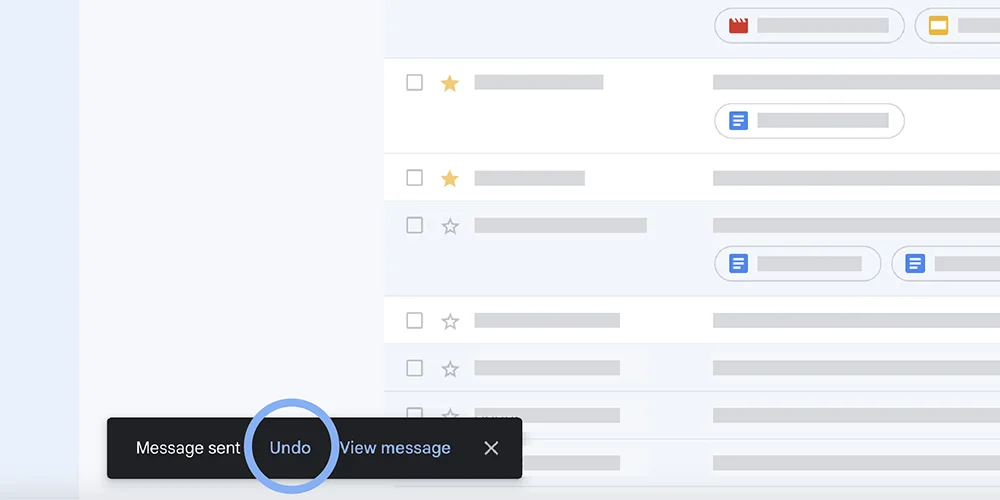
In the bottom left, look for the message: “Message sent”
-
Click Undo before the timer ends to unsend the email
-
Gmail pulls the message back into Drafts
Source: Google.com
How to increase the Gmail Undo Send time limit?
Direct answer
Go to Settings → General → Undo Send and choose up to 30 seconds.
Step-by-step
-
Open Gmail
-
Select the Gear icon → See all settings
-
Under the General tab, find Undo Send
-
Choose 5, 10, 20, or 30 seconds
-
Scroll down and click Save Changes
Fact nugget: 30 seconds is the maximum undo window in Gmail.

Source: Google.com
What are the limitations of Gmail’s Undo Send?
Direct answer
You can’t retract emails that have already been delivered.
Main limitations
-
Works only for the defined delay window
-
Not available for messages already sent or read
-
Doesn’t guarantee recipients won’t see notifications
-
Doesn’t apply to mobile offline sending
-
Doesn’t modify or delete emails in someone else’s inbox
Can you recall an email sent from Gmail to Outlook or other providers?
No. Cross-provider recalls are not possible.
Email standards (SMTP/IMAP) don’t allow for remote message deletion. Once delivered, it’s permanent.
Fact nugget: SMTP — the protocol powering email — does not include a recall function.
How to reduce mistakes when sending emails (practical tips)
-
Enable Undo Send and set it to 30 seconds
-
Write sensitive emails in a separate doc first
-
Double-check recipients before typing the body
-
Use smart tools to schedule, pause, or review outgoing messages
How Mailbutler can help
Mailbutler provides features that go beyond Gmail’s limited Undo Send function. These include:
Fact nugget: Mailbutler helps prevent the mistakes Gmail can’t fix after sending. If you need real control, not just a 30-second delay, Mailbutler is essential.
FAQs
Can I recall a Gmail message after 30 seconds?
No. After the timer expires, the message is fully delivered and can’t be pulled back.
Does Gmail notify someone if I unsend an email?
No. If you click Undo, the message is never delivered, so no notification appears.
Can I recall a Gmail email on mobile?
Yes, the same Undo bar appears in the Gmail mobile app.
Does Gmail’s recall work for attachments?
Yes. If you click Undo in time, the entire email (text + attachments) is canceled.
Can I delay all sent emails automatically?
Google does not offer this, but Mailbutler allows smarter scheduling and workflow control.
Community discussions about Gmail’s Undo Send
From a thread titled “If you send a gmail and immediately undo it, will the person still get a notification that you sent one?” (on r/GMail) — a user writes:
You never sent the email, so the recipient won’t get a notification that you sent one. The Gmail “undo” works by delaying the sending of the email … to allow you the opportunity to “undo” it.
In another thread, a user says:
Also, keep in mind that undo-send doesn’t actually undo (recall) the sent message. It’s implemented as a delay, and when the time expires, THEN it’s sent.
From a thread “Cancel/ undo message sent after 30 seconds”:
Just a footnote: the undo send is not an actual undo or recall. It simply DELAYS sending the message giving you the opportunity to abort (undo) the send. Once it’s been sent, it’s gone.
A user recounting a real-life mishap (wrong recipients, confidentiality concern) in “Accidental acc”:
Using our work email … a colleague has just sent an email to multiple customers … I set mine to the maximum, which is 30 seconds.
Finally, in a thread titled “Preview ruined my job application. Can’t unsend the email.” one user expresses frustration:
Gmail only allows you to un-send the email BEFORE you read it, so it’s a completely useless function … it has never once been useful to me because the prompt never stays on when you actually need it.
Key takeaways
-
Gmail does not offer true message recall — only Undo Send
-
You can cancel a message only within 5–30 seconds
-
After the delay expires, the email is permanently delivered
-
To reduce mistakes, activate the 30-second delay and use workflow tools
-
Mailbutler adds smarter review, scheduling, and mistake-prevention features












Sivuyile
19 Dec 2025
Sivuyile
19 Dec 2025
I love mail bulter
19 Dec 2025