




5 Best Mixmax Alternatives
Mixmax alternatives for 2026: compare 5 tools on price, features, and platform support to find the right fit.

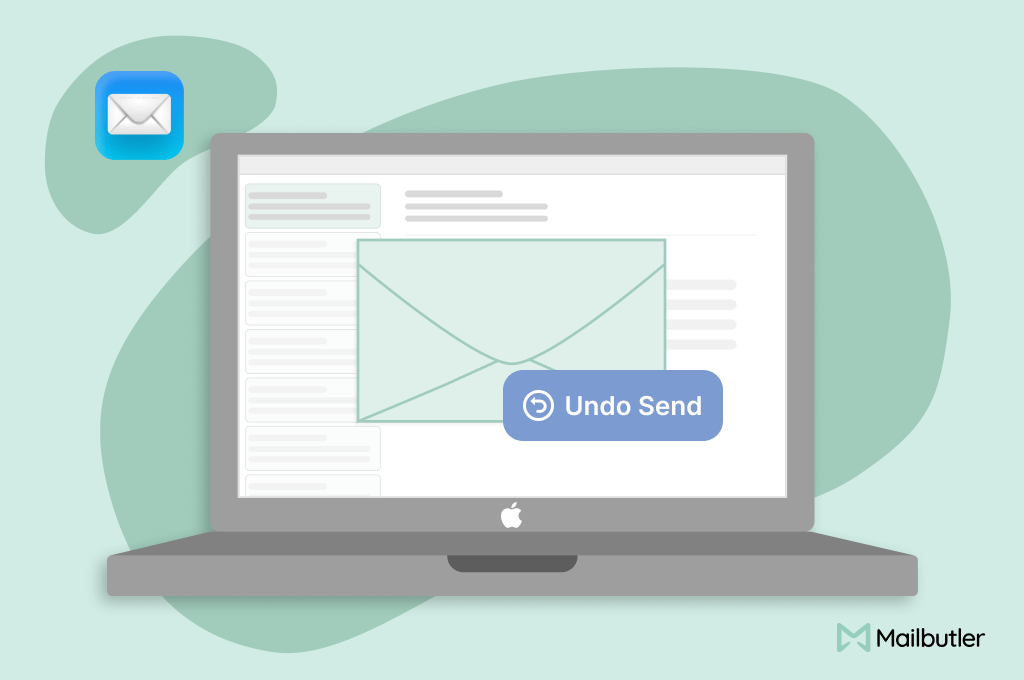
Wondering how to recall an email in Apple Mail? This guide explains why recall isn’t possible, how Undo Send works, and proven ways to avoid email mistakes.
Irena is an experienced content and email marketer who loves animals, slow mornings, and all things Tolkien.
TL;DR
You cannot truly recall an email once it’s been sent in Apple Mail.
However, Apple Mail offers workarounds like Undo Send, follow-up emails, and third-party tools, that can reduce damage or prevent mistakes before they happen.
Sending an email too early or to the wrong person happens more often than most people admit.
In workplace communication, email errors can lead to:
Confidentiality breaches
Awkward professional situations
Lost trust or compliance risks
Apple Mail is widely used across macOS, iOS, and iPadOS. But many users assume it has a built-in “recall” feature similar to Outlook.
It doesn’t.
Let’s clarify what’s possible, what’s not, and what actually works.
Direct answer: No. Apple Mail does not offer true email recall.
Once an email leaves Apple’s Mail app and reaches the recipient’s mail server, it cannot be pulled back.
Fact nugget: Email delivery is decentralized; the sender has no control after transmission.
Direct answer: Undo Send only delays sending, it does not recall delivered emails.
How Undo Send works
Apple introduced Undo Send in:
iOS 16+
macOS Ventura+
When enabled, Apple Mail holds outgoing messages for up to 30 seconds before sending.
How to enable Undo Send in Apple Mail
Open Mail Settings
Go to Composing
Set Undo Send Delay (5–30 seconds)
Fact nugget: Undo Send is a delay buffer, not a recall mechanism.
Direct answer: Apple Mail uses open email protocols (SMTP), not centralized systems.
The technical reason
Apple Mail sends emails via SMTP
SMTP does not support message revocation
The recipient’s server controls delivery
How to reduce the need for recall
Enable Undo Send (30 seconds)
Disable auto-send keyboard shortcuts
Proofread using a delay rule
Use third-party tools like Mailbutler
Double-check recipients before hitting send
Fact nugget: Most email mistakes happen due to speed, not complexity.
Smart timing and scheduling: You can schedule emails to be delivered later, giving yourself breathing room to catch errors or change your mind before the message actually hits an inbox.
Pre-send review aids: Features like message templates, notes attached to drafts, and follow-up tasks help you structure complex messages clearly, lowering the chance of mistakes in the first place.
Contact and content checks: Mailbutler’s tools help you double-check recipients and context before pressing Send.
Fact nugget: Mailbutler’s workflow tools reduce the need for recalls by helping you catch and fix errors before an email is sent.
Some users report that Undo Send doesn’t always reopen the message cleanly, sometimes causing the email to disappear after they use the feature.
Others note that closing the Mail app before the Undo Send timer finishes might affect delivery or how the app handles the email on the client side (though the email typically still sends).
Can Apple Mail recall an email after it’s opened?
No. Once delivered, recall is impossible.
Does iCloud Mail support recall?
No. iCloud Mail follows the same SMTP rules.
Is there a hidden recall feature in macOS Mail?
No. Any recall claims are misunderstandings of Undo Send.
Can third-party apps recall emails?
No app can recall delivered emails—but some prevent mistakes.
Apple Mail does not support true email recall
Undo Send only delays sending—up to 30 seconds
Once delivered, emails cannot be pulled back
Follow-up emails are the most reliable fix
Tools like Mailbutler reduce sending mistakes proactively




Mixmax alternatives for 2026: compare 5 tools on price, features, and platform support to find the right fit.

Looking beyond Mailsuite? We compared 10 email tracking and mail merge tools for Gmail and Outlook, with 2026 pricing and trade-offs.

10 Scribe alternatives compared, focusing on pricing, brand governance features, and honest trade-offs for teams of every size.
Top 5 alternatives to MailTracker for Gmail, with real pricing, feature breakdowns, and honest trade-offs to help you pick the right one.

Looking for the best Outlook mail merge tool? We compare 5 options on pricing, personalization depth, and data privacy to help you pick the right one.

Looking for the best Front alternatives? Compare 10 shared inbox and help desk tools on price, features, and fit.