





5 Best Mixmax Alternatives
Mixmax alternatives for 2026: compare 5 tools on price, features, and platform support to find the right fit.

Need help to clean up your email inbox? Mailbutler's here to help you organise your Outlook, Gmail or Apple Mail inbox.

Irena is an experienced content and email marketer who loves animals, slow mornings, and all things Tolkien.
TL;DR
A clean inbox reduces stress, improves focus, and saves hours every week. This guide shows you exactly how to clean up email inbox clutter in Outlook, Gmail, and Apple Mail — and how Mailbutler helps you stay organized long‑term.
Inbox overload is more than annoying — it’s a documented productivity drain.
The average knowledge worker spends 28% of their workweek on email.
Professionals receive 50–100 emails per day, sometimes far more.
Employees waste 10.8 hours weekly on non‑critical emails.
Digital clutter silently erodes focus. Cleaning up your inbox gives you more mental bandwidth, faster decision‑making, and a calmer workday.
Fact nugget: A cluttered inbox creates cognitive load similar to a messy physical workspace.
Direct answer: Create a “To Sort” folder and move all existing messages there.
This prevents new emails from interrupting your clean‑up process and gives you a blank slate to work from.
Direct answer: Decide which types of emails truly deserve to stay.
Visualize an inbox where every message has purpose — then clean in one uninterrupted session. This reduces decision fatigue and speeds up your process.
Ask yourself:
“When was the last time I needed an email older than five years?”
Reduce the time window until you find your comfort zone (e.g., two years, one year). Then delete or archive everything older than that.
Over‑organizing creates digital clutter.
Use a simple 3–4 folder system:
Inbox — For today’s actionable items
This Week — Needs attention soon
FYI — Reference only
Archive — Everything else
Fact nugget: Research shows the average employee is overloaded with 117 emails and 153 Teams messages daily.
Search for keywords such as:
no‑reply
sale
update
invite
reminder
This lets you delete entire categories in seconds.
Ask:
”Does this newsletter support my goals?”
If not, unsubscribe immediately.
Fact Nugget: Newsletters are one of the largest inbox contributors — with many professionals receiving 20+ newsletters daily.
If an email is months old and you never responded, the sender isn’t waiting anymore. Let it go — or send a quick follow‑up if truly needed.
Evaluate each message with four questions:
Does it belong in a folder?
Has it already been handled?
Is it too late to respond?
Has it already served its purpose?
If yes → Archive or delete.
Most clutter comes from messages you “intend to get to later.”
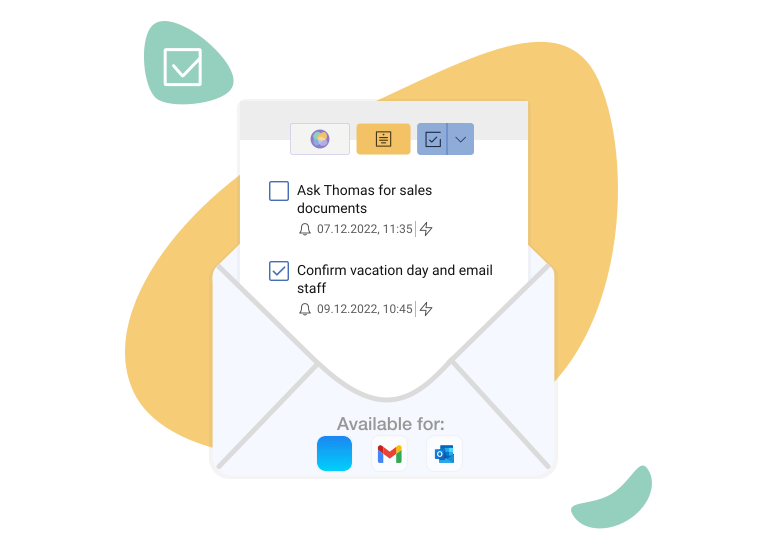
Instead, convert actionable emails into tasks immediately.
Use Mailbutler Tasks and turn emails into organized, trackable items right inside Apple Mail, Outlook, or Gmail.
→ This prevents your inbox from becoming a to‑do list.
Direct answer: Create rules for VIPs, newsletters, invoices, and automated alerts.
This reduces cognitive overload — critical in a world where employees are interrupted by emails or Teams messages every 2 minutes.
Direct answer: Use Mailbutler to generate summaries so you only read the essentials.
Mailbutler creates quick, concise summaries of long emails with one click. You get the key points without rereading the full message, and the summary stays attached to the email so you can revisit it instantly.

Mailbutler's Smart Summarize
Batch email checks (e.g., morning–midday–afternoon). Turn off notifications outside these windows.
Fact Nugget: Workers lose 127 hours per year regaining focus after interruptions.
If an email can be handled in under 2 minutes, do it now.
If not, snooze it or add a task.
Direct answer: Use Mailbutler’s AI to draft replies so you clear your inbox faster.
Mailbutler can generate reply drafts with one click, helping you move through emails quickly without typing everything yourself.
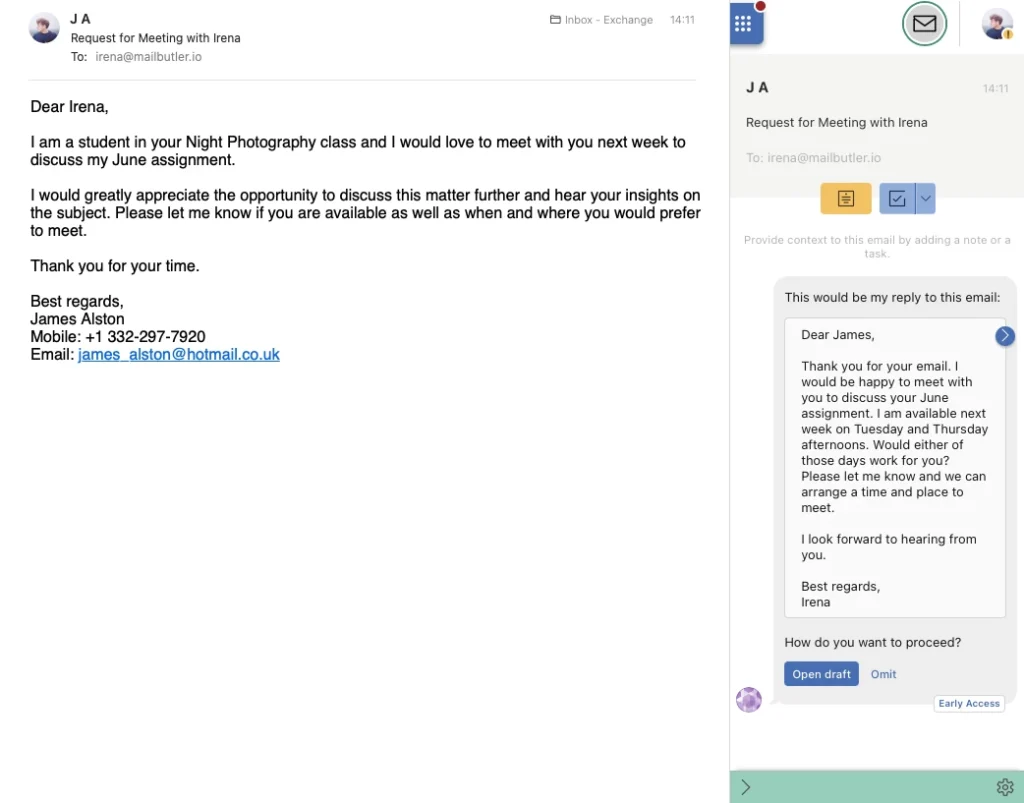
Mailbutler's Smart Compose generates replies using AI
Before signing up for a new service, ask whether the emails will genuinely help you. If not, skip.
Tags add visual clarity and context at a glance:
Color‑code project emails
Differentiate clients
Mark priority levels
Tag Mailbutler notes and Mailbutler tasks for cross‑reference
Fact nugget: Tagging reduces decision time by giving immediate visual cues.

Mailbutler's Tags
Direct answer: Use Mailbutler to assign emails to reduce inbox chaos
Mailbutler lets you assign emails to the right teammate in a shared inbox, with a live status showing who’s already on it. This prevents duplicate work, missed messages, and inbox chaos.

Mailbutler's Email Assignment
Use bulk‑search filters (date, sender, category) and delete in batches. Outlook users can use Clean Up Conversation and Gmail users can delete entire categories in one action.
Use filters (e.g., "older than 1 year", "has attachment") and then delete or archive everything matching them.
Review your junk/spam folder, then select Delete All if the filtering was correct.
Follow the five‑step model: consolidate → simplify folders → batch delete → unsubscribe → archive old items.
From a thread titled “A Step‑by‑Step Guide to Decluttering Your Email” (r/declutter)
Unsubscribe ruthlessly… Organize with folders and labels… Allocate time for email. Embrace filters. Purge old emails.
From a thread titled “Best way to clean up my inbox efficiently?” (r/GMail)
Doing targeted searches and deleting the search results may help you… use search terms like is:unread or filters to find old messages.
From a thread titled “Best way to clean up my inbox efficiently?” (r/GMail)
Finally, do a generic delete… I delete all read emails older than 2 years that don’t have a label.
A clean inbox reduces stress and boosts productivity.
Email overload is real — with 50–150 emails per day for many workers.
Simple folder systems outperform complex ones.
Automations, batching, and task conversion prevent future clutter.
Mailbutler is one of the most effective tools for long‑term inbox management.




Mixmax alternatives for 2026: compare 5 tools on price, features, and platform support to find the right fit.

Looking beyond Mailsuite? We compared 10 email tracking and mail merge tools for Gmail and Outlook, with 2026 pricing and trade-offs.
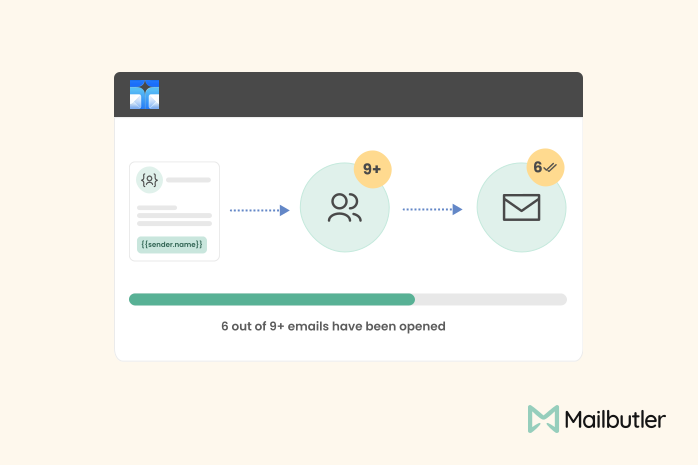

10 Scribe alternatives compared, focusing on pricing, brand governance features, and honest trade-offs for teams of every size.
Top 5 alternatives to MailTracker for Gmail, with real pricing, feature breakdowns, and honest trade-offs to help you pick the right one.

Looking for the best Outlook mail merge tool? We compare 5 options on pricing, personalization depth, and data privacy to help you pick the right one.
Fadia
22 Mar 2020
Fadia
22 Mar 2020
All you suggested didn’t help me with the key ?:
How do I delete all the mail in the promotion file at once.
I mean something different than the other suggested ways that I already went through.
22 Mar 2020
Fanni
15 Jun 2020
Fanni
15 Jun 2020
Hi! Thank you for your comment. How to delete all the emails in a file depends on the email application you’re using. Usually, there’s an option to select all the emails and delete them all at once.
15 Jun 2020
Mike Hennessey
24 Apr 2023
Mike Hennessey
24 Apr 2023
mikehennessey@aol.com
I have MS so can’t do much. Can you help?
Tel. 01934 86 3401 speak to my wife Claire
24 Apr 2023
James
24 Apr 2023
James
24 Apr 2023
Hi Mike. Our Support Team has reached out to you through your AOL email address. Maybe Claire can respond if it’s too difficult for you? We’d be happy to help with any questions you have about Mailbutler!
24 Apr 2023
Uomo Stronzo
20 May 2026
Uomo Stronzo
20 May 2026
Please add me to your mailing list.
20 May 2026
Julia
20 May 2026
Julia
20 May 2026
Hi Uomo,
Thanks for your message.
To get added to our mailing list and receive updates on our new features and improvements, please register for a Mailbutler account. To get started with Mailbutler, head to this page:
https://www.mailbutler.io/get-started/
Thanks!
20 May 2026