




5 Best Mixmax Alternatives
Mixmax alternatives for 2026: compare 5 tools on price, features, and platform support to find the right fit.

Mailbutler’s AI-based Smart Assistant generates both positive and negative email responses in just a few moments. Find out more inside.

Irena is an experienced content and email marketer who loves animals, slow mornings, and all things Tolkien.
Email is one of the most commonly used business communication channels, so it’s no surprise that the average office worker gets around 121 messages every day. Even though some of these emails might not require a response, most of them do, which explains why the average employee spends half their workday reading, writing, and managing emails.
To help you free up time and get more done, Mailbutler’s AI-based Smart Assistant is designed to generate professional email replies in just a few seconds. Read on to learn more about its Smart Respond functionality.
Smart Respond is one of the Mailbutler Smart Assistant’s six core sub-features. It generates both positive and negative email replies based on the content and writing style of the message you want to respond to. Like Smart Compose, Smart Respond can help you overcome blank page syndrome and reply to emails quickly.
To use Smart Respond, you first need to select the email you want to reply to. Then choose “Reply” in your Mailbutler Sidebar (or click on the ⬇️ next to “Reply” and select “Reply positively 👍” or “Reply negatively 👎”).
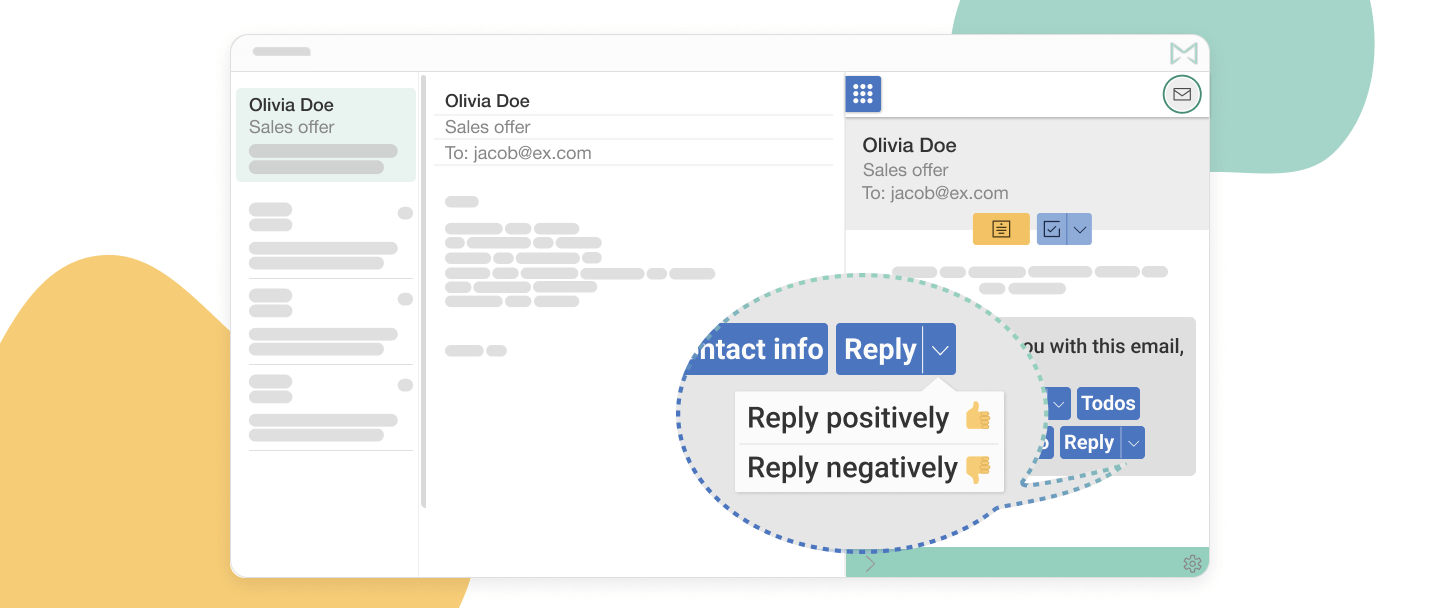
The Mailbutler Smart Assistant’s Smart Respond functionality
The Mailbutler Smart Assistant will provide you with a few different email replies. If you decide to go with one of the generated responses, all you’ll need to do is select “Open draft” from the Mailbutler Sidebar. The Smart Assistant will then add this copy to the reply window and you can make any changes you need.
Here are a few quick tips to help you make the most of Smart Respond:
Let’s see Smart Respond in action.
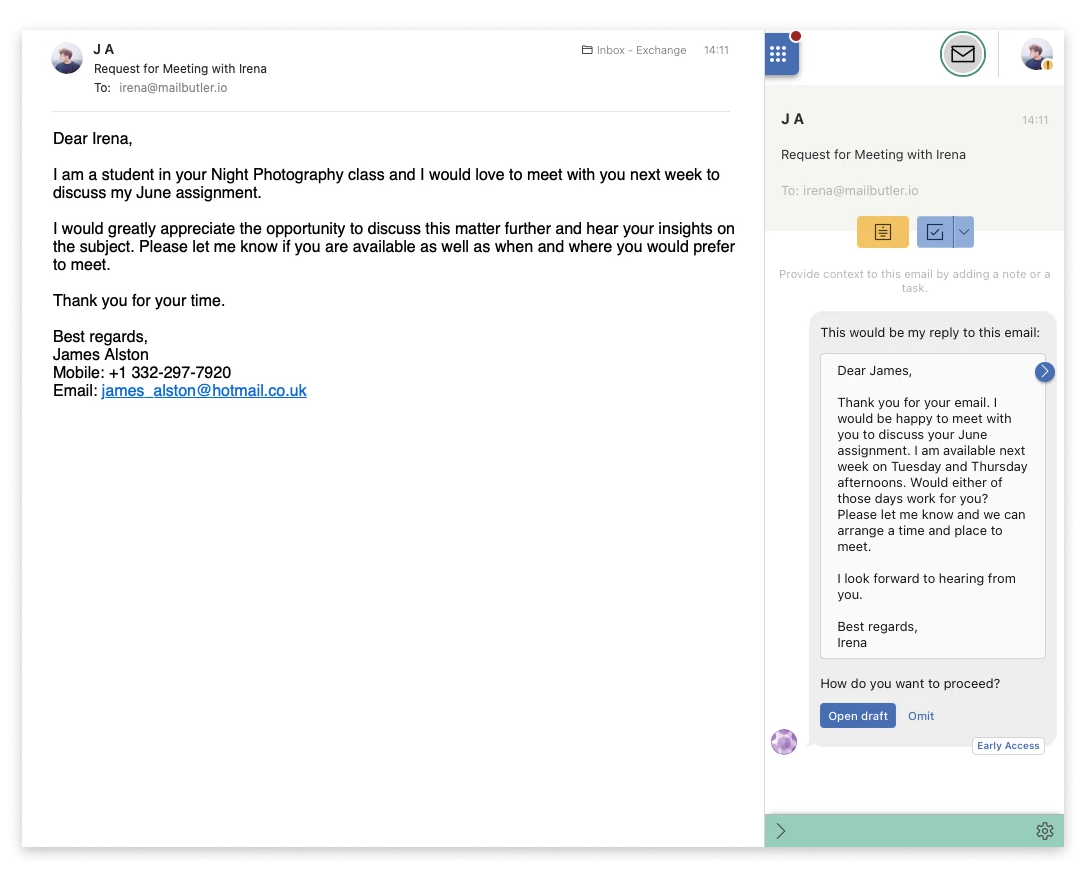
Smart Respond in action - Reply
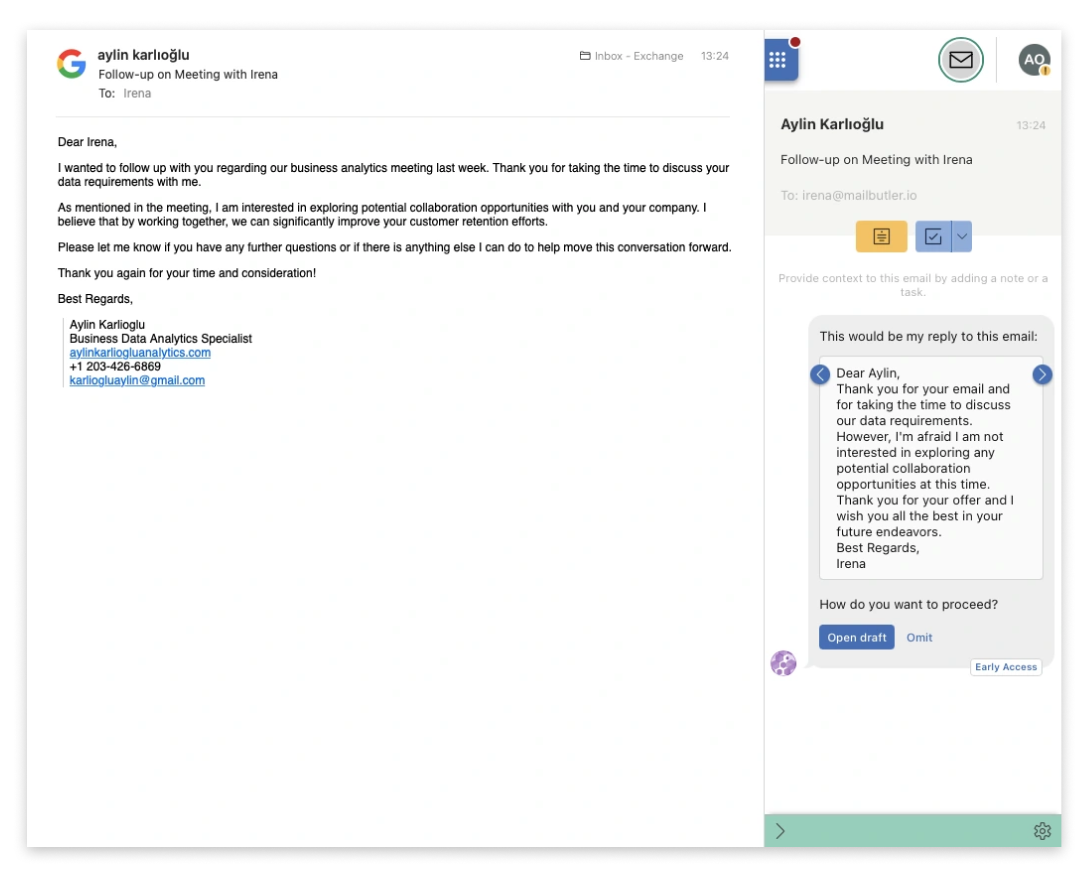
Smart Respond in action - Reply negatively 👎
Please bear in mind that Mailbutler’s Smart Assistant generates a unique set of email replies every time you use Smart Respond, even if you use the sub-feature on the same received message. This means that you’ll need to manually save the email responses you would like to be able to reuse as message templates.
As a Mailbutler member, you have access to numerous inbox-boosting features that work extremely well with Smart Respond. Pair the Mailbutler Smart Assistant’s Smart Respond with:
The Smart Assistant cannot be trained to write email replies in your personal email-writing style. This is a necessary trade-off between functionality and privacy protection, as for it to be able to do this, it would have to have access to all of your outgoing emails. The good news is that the Smart Assistant can compose both positive and negative replies based on the content and tone of the email you want to respond to.
The Smart Assistant’s Smart Respond functionality works any language. The Smart Assistant drafts email responses in the language of the email you are responding to.
To be able to generate professional and contextually appropriate email replies for you, the Smart Assistant requires access to the content of the message you want to respond to. However, Mailbutler anonymizes potentially sensitive information before it transfers any email content to OpenAI, thus ensuring your data privacy and safety.
With the Mailbutler Smart Assistant’s Smart Respond functionality, you can reply to important, time-sensitive emails in just a few seconds. Drafting an effective email response is as simple as choosing a reply type: either positive or negative.
Smart Respond keeps you professional by helping you to respond on time. It aids you in nurturing your business relationships even when you don’t have the bandwidth to write a message from scratch.
Related posts:




Mixmax alternatives for 2026: compare 5 tools on price, features, and platform support to find the right fit.

Looking beyond Mailsuite? We compared 10 email tracking and mail merge tools for Gmail and Outlook, with 2026 pricing and trade-offs.

10 Scribe alternatives compared, focusing on pricing, brand governance features, and honest trade-offs for teams of every size.
Top 5 alternatives to MailTracker for Gmail, with real pricing, feature breakdowns, and honest trade-offs to help you pick the right one.

Looking for the best Outlook mail merge tool? We compare 5 options on pricing, personalization depth, and data privacy to help you pick the right one.
Looking for the best Front alternatives? Compare 10 shared inbox and help desk tools on price, features, and fit.